Monytar Handbook
Expenses, from receipt to reimbursement.
A five-minute tour of how Monytar works — for the people who spend, the people who approve, and the people who keep the books.
Updated September 2026
How it works
Step 1 · You
Submit
Say what you spent and why. Add the receipt.
Step 2 · Your manager or finance
Approve
A reviewer says yes — or asks for a change.
Step 3 · Finance
Get paid back
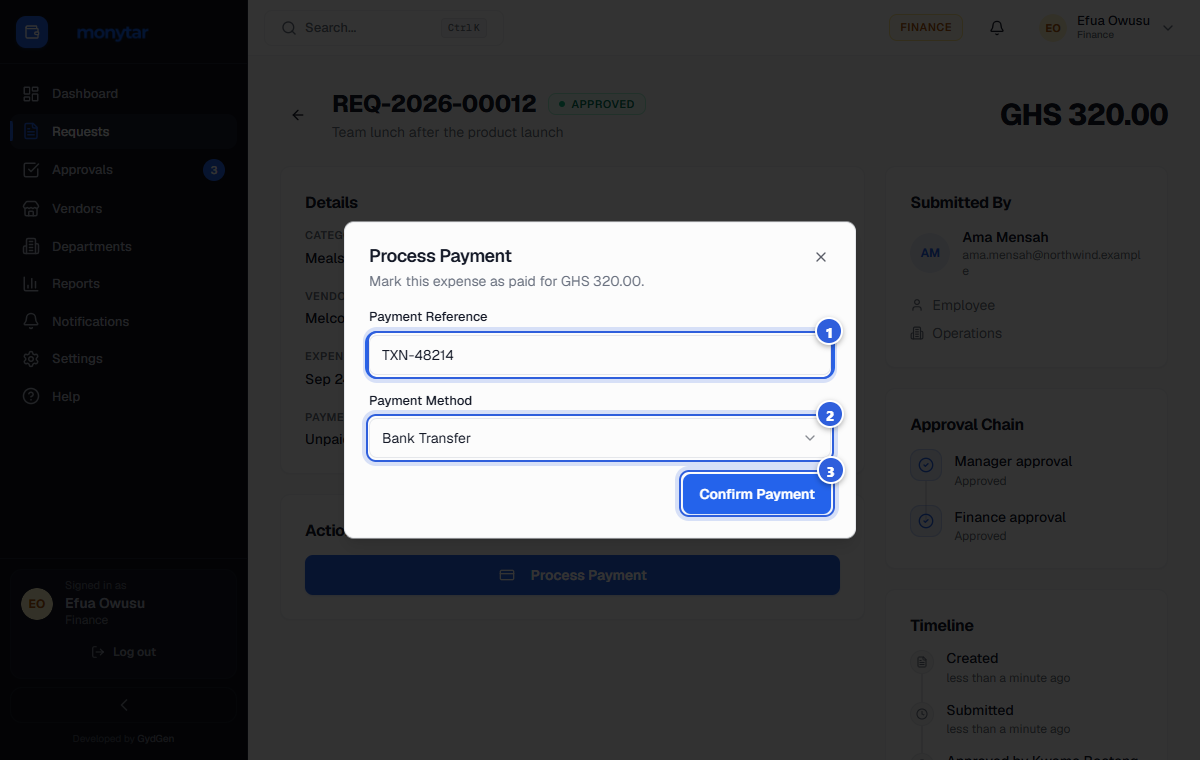
Finance records the payment. You're done.
The four roles
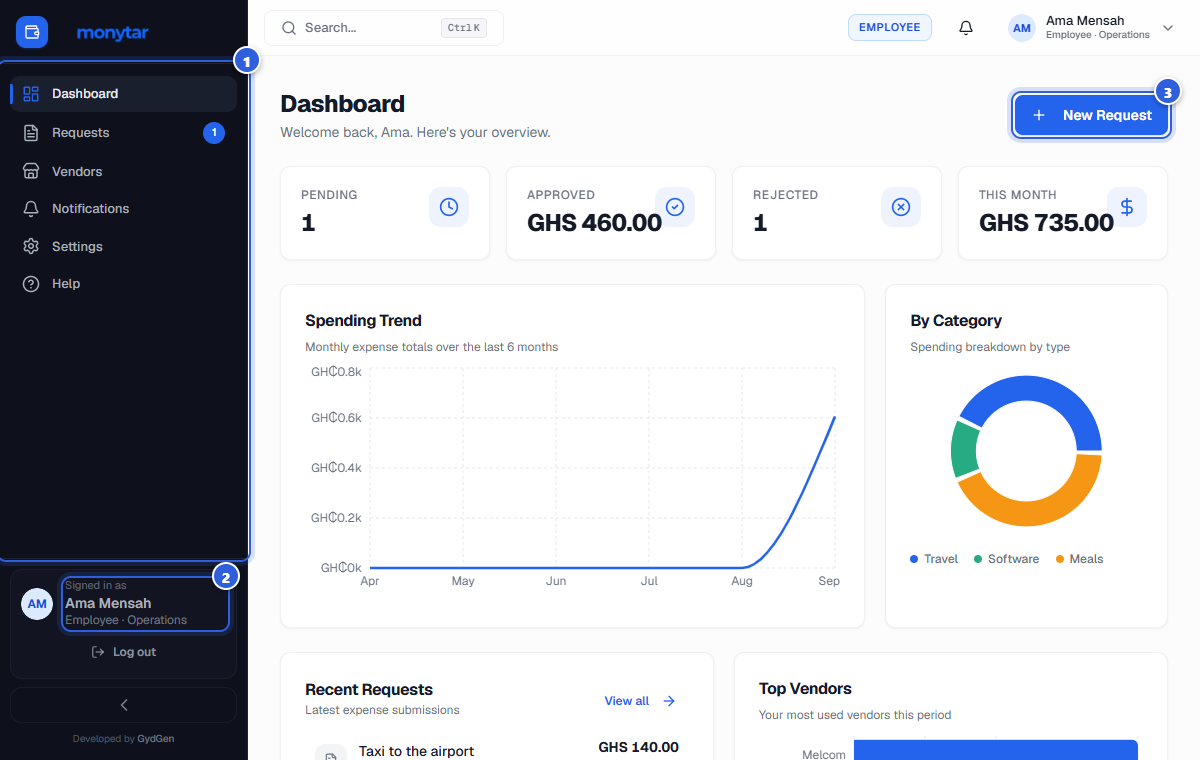
Employee
Spends for work and wants it back.
- Add expenses
- Attach receipts
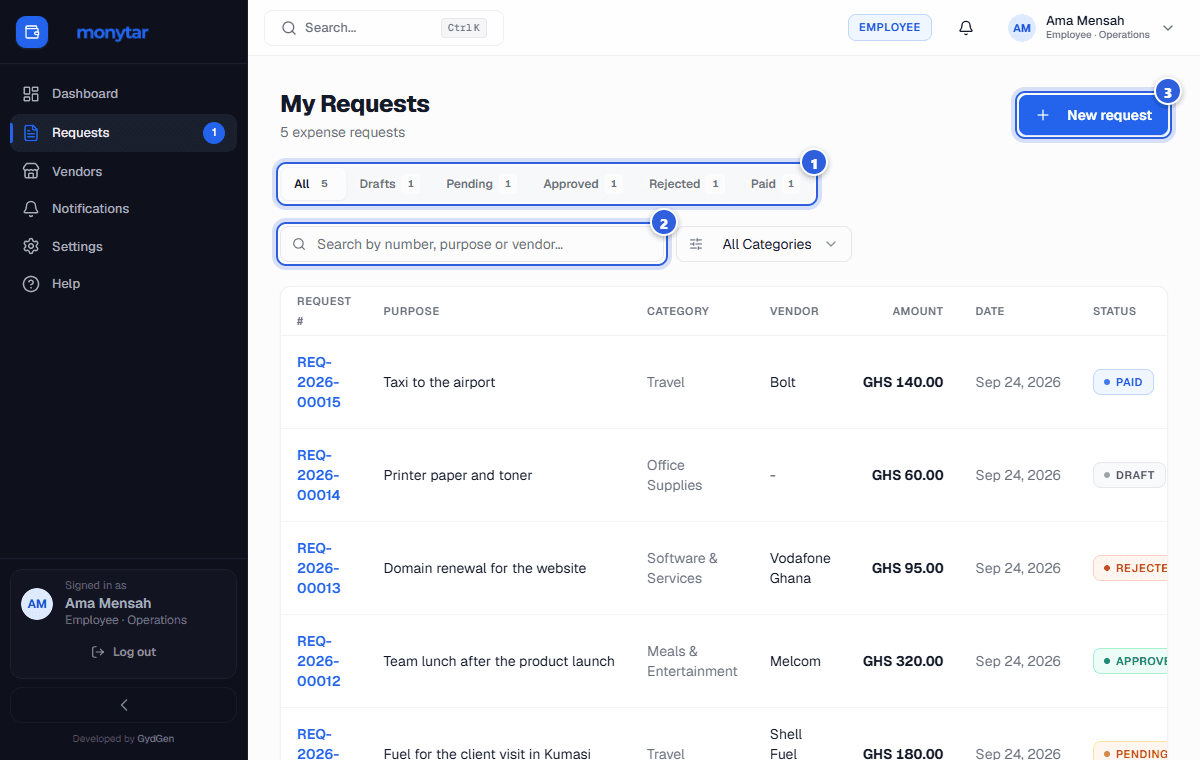
- Track status
- Fix and resubmit
Manager
Keeps a team's spending in check.
- Everything an Employee can
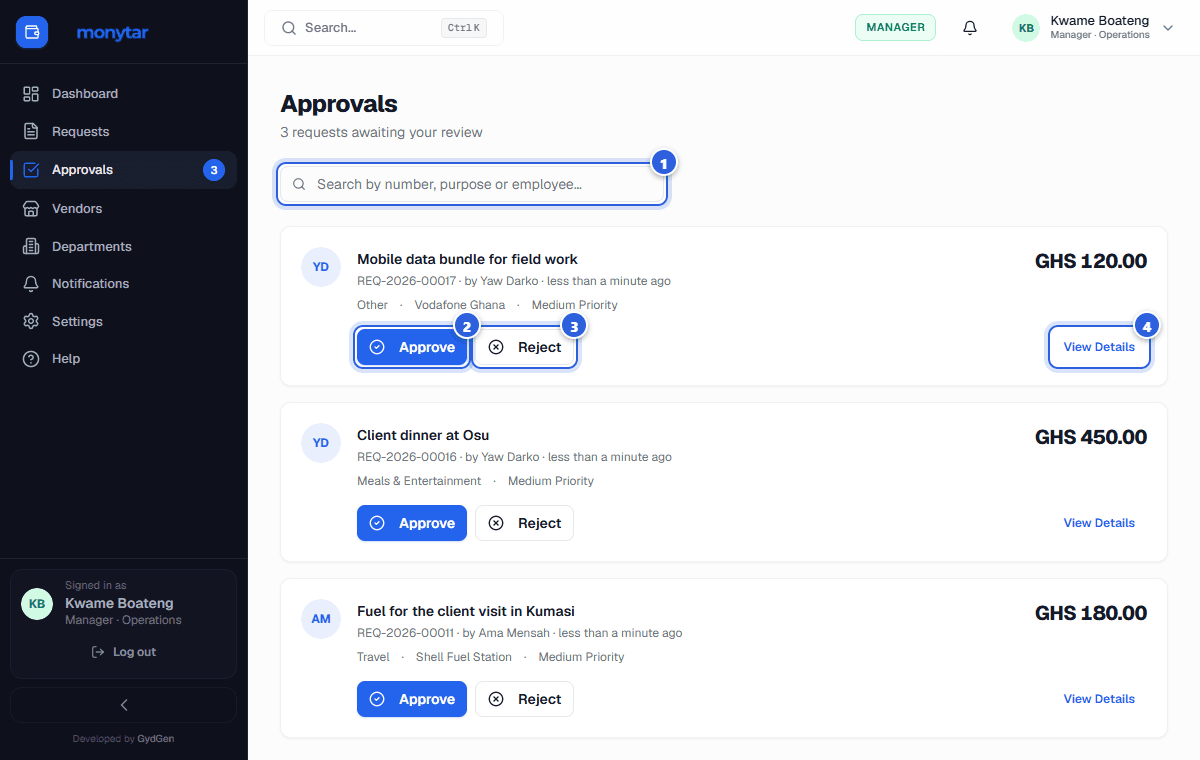
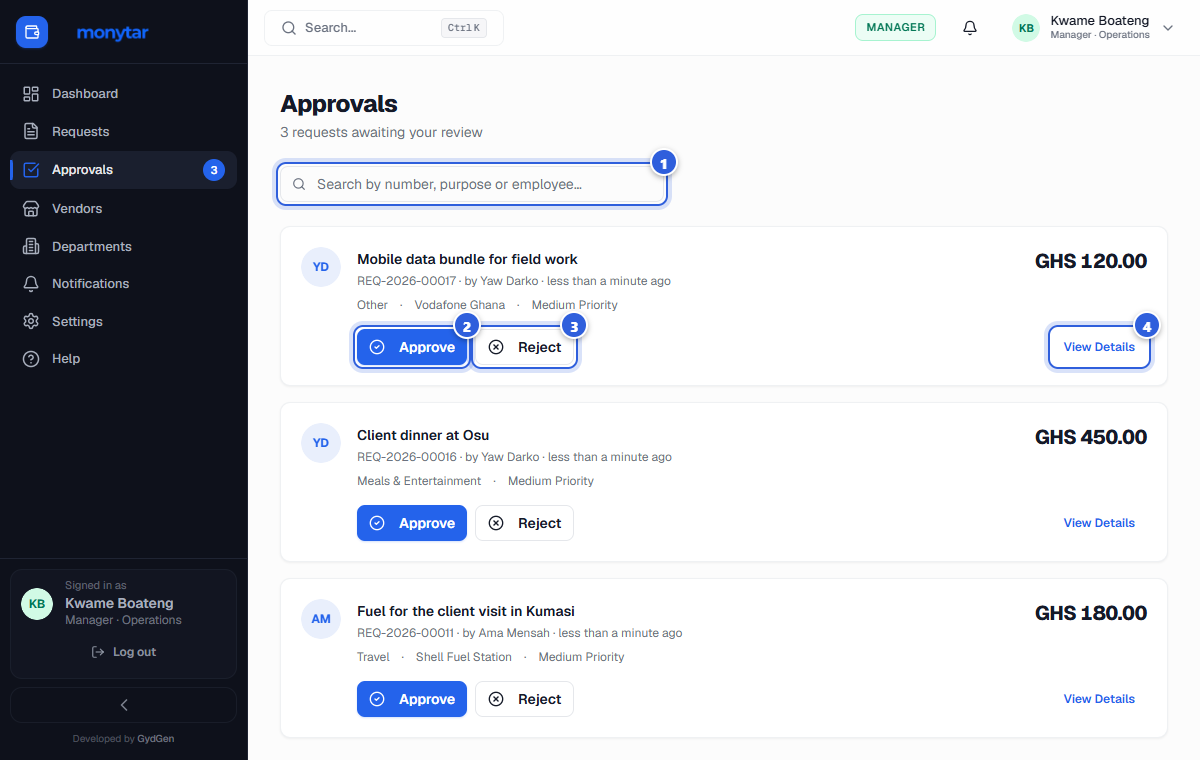
- Approve their department
- Watch team budgets
Finance
Keeps the books straight.
- Everything a Manager can
- Approve any request
- Record payments
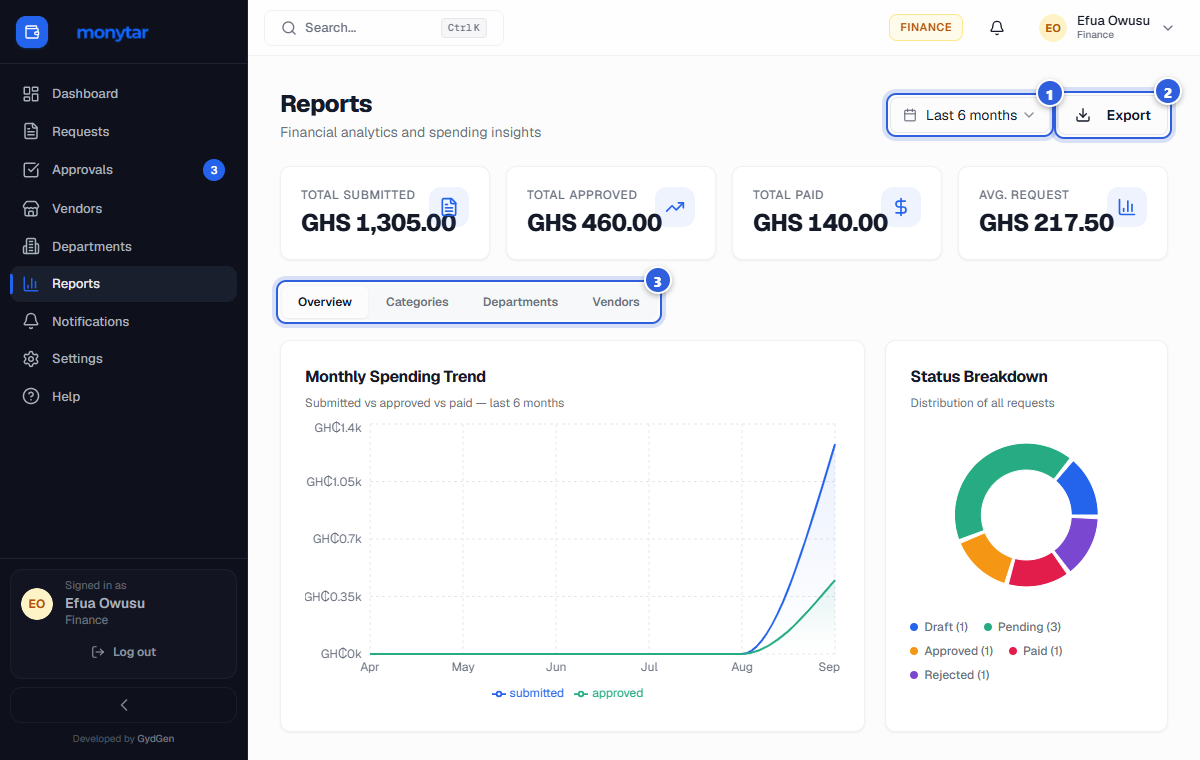
- Run reports
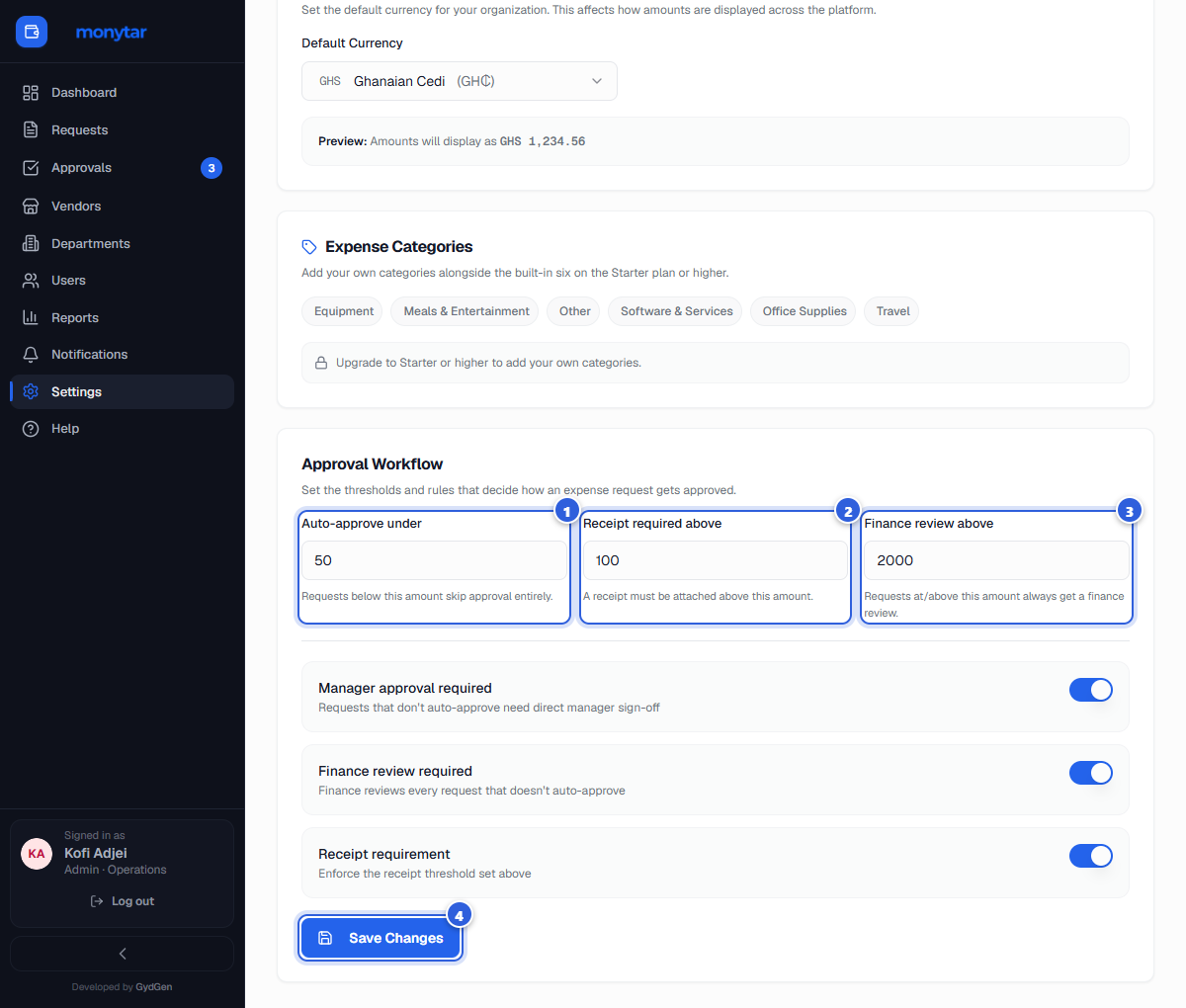
- Set approval rules
Admin
Runs Monytar for the company.
- Everything above
- Invite and manage people
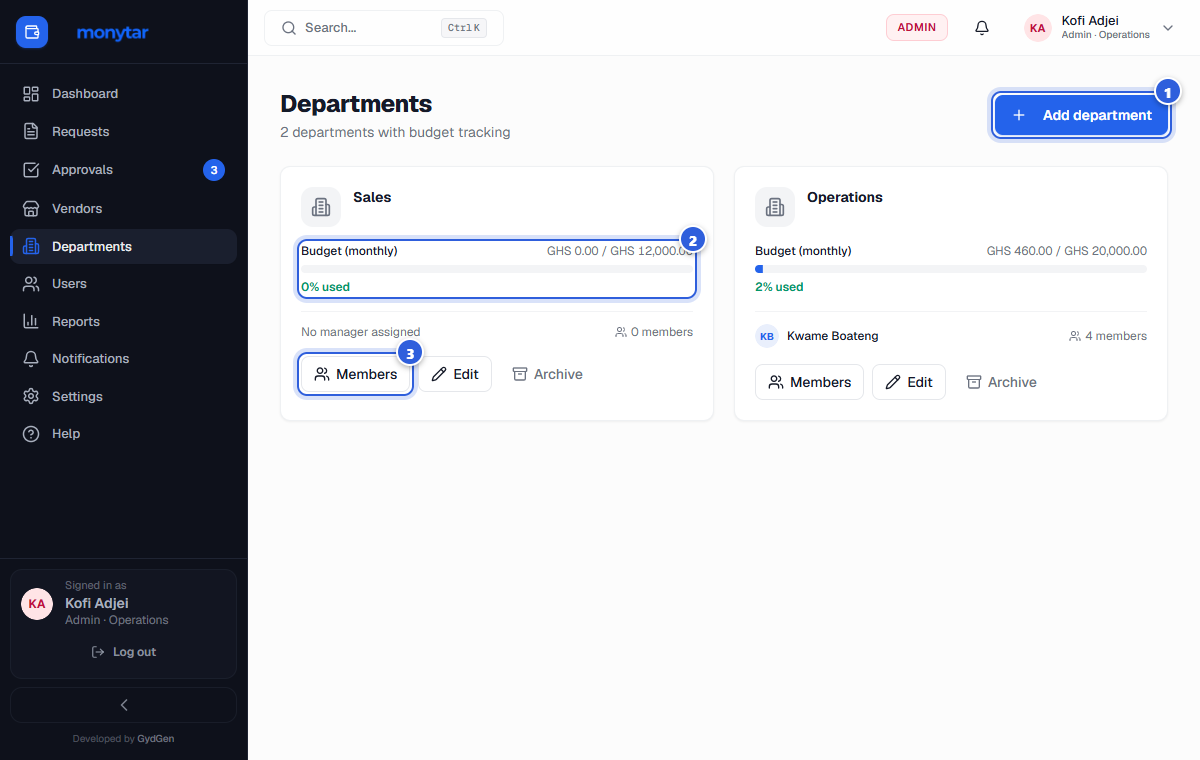
- Set up departments
- Company settings
How an expense moves
draft
Started, not sent yet. Only you can see it.
Do: Finish it, then Submit for Approval.
pending
Sent. Waiting for a decision.
Do: Nothing. You'll be notified. Small amounts may auto-approve.
approved
A reviewer said yes.
Do: Finance records the payment.
paid
Payment recorded. All finished.
Do: Nothing more to do.
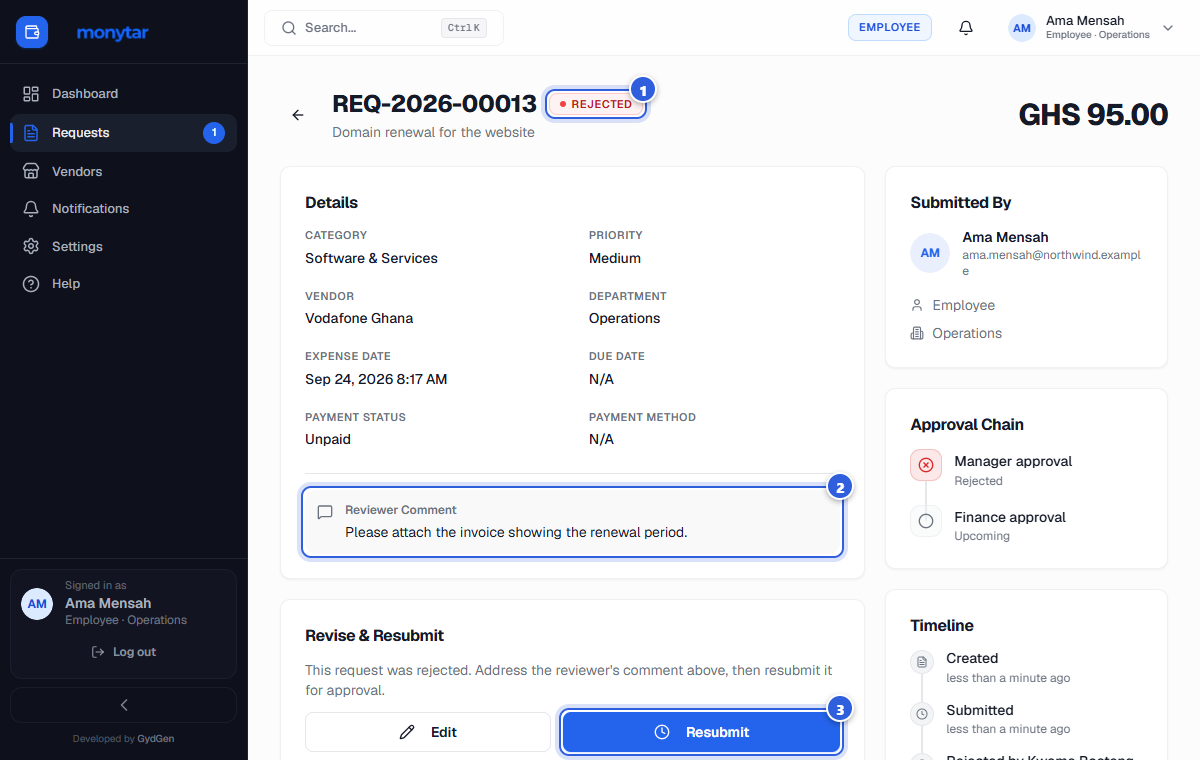
Rejected? A reviewer said no, and left a reason. Open it, read the comment, click Edit, then Resubmit.
Rules, in plain English
Example amounts — every company sets its own.
- Under 50: approved automatically.
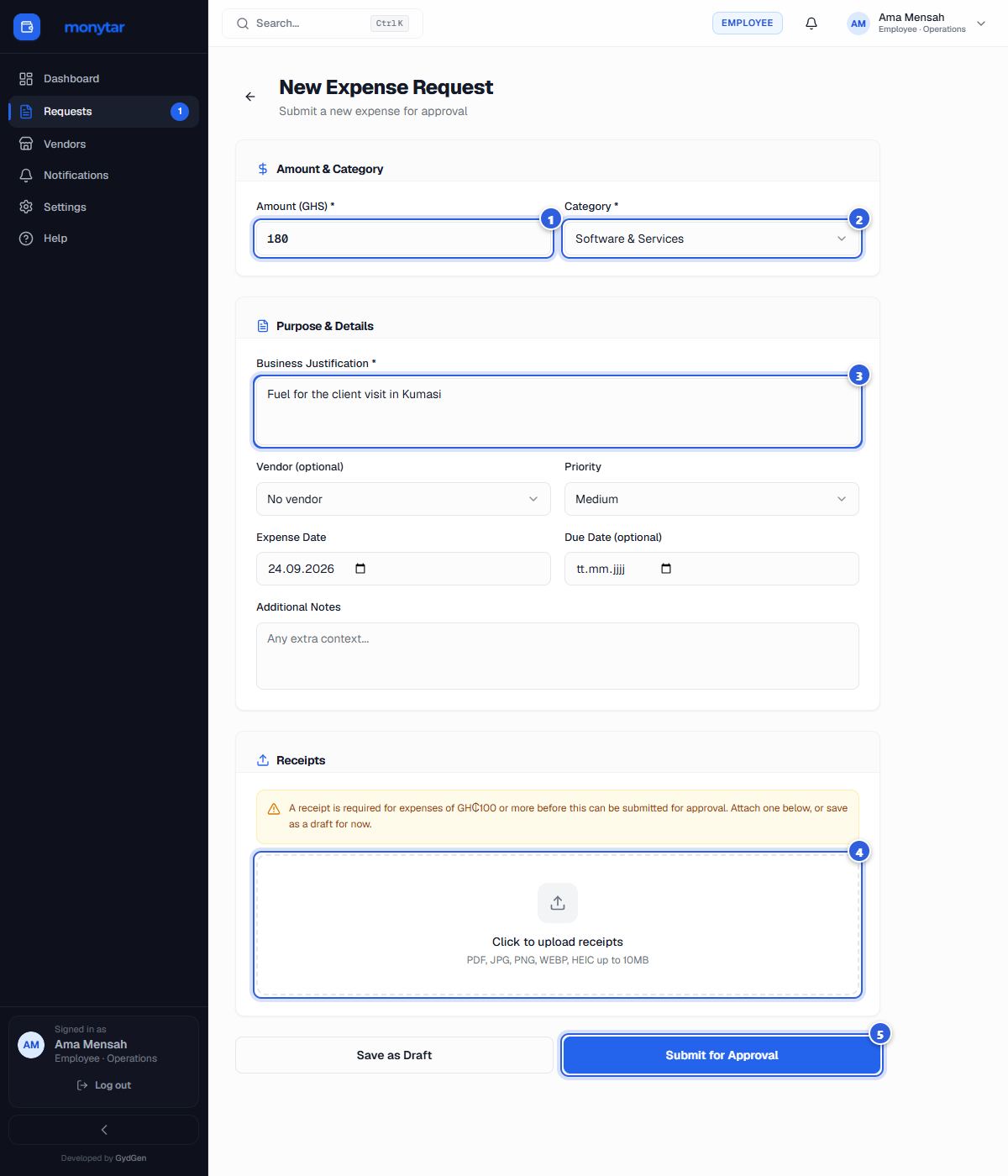
- 100 or more: a receipt is required.
- 2,000 or more: finance reviews as well as the manager.
Getting started
For the person opening the account
Set up my company
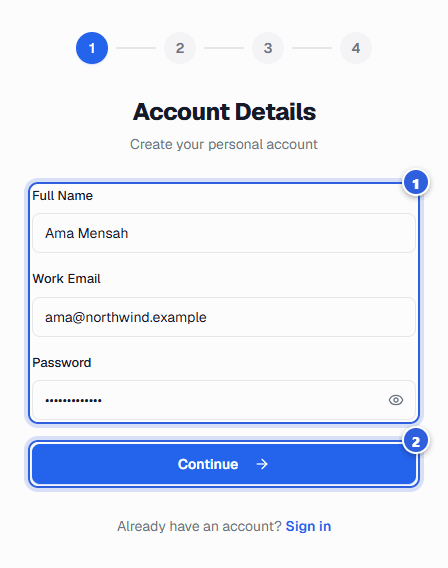
Four short steps, then invite your team. You become the Admin.
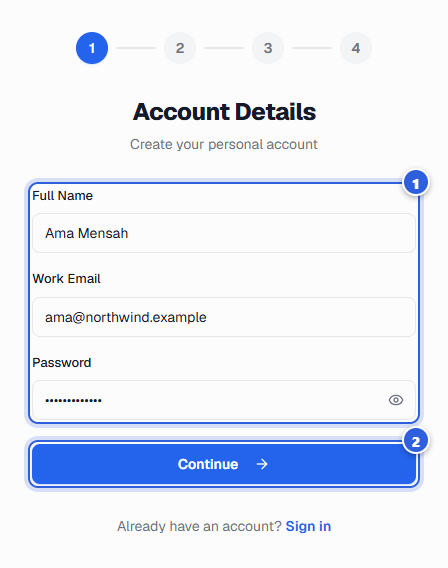
- Your details. Enter your name, work email and a password of at least 8 characters.
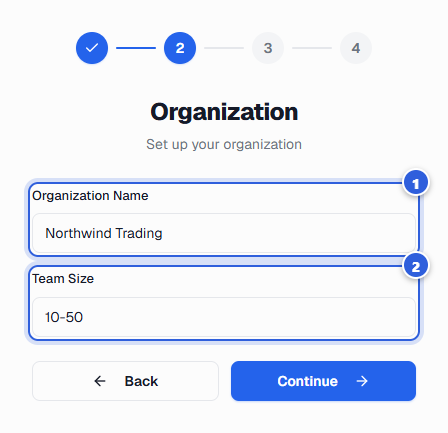
- Your organization. Type your company's name. Team size is optional.
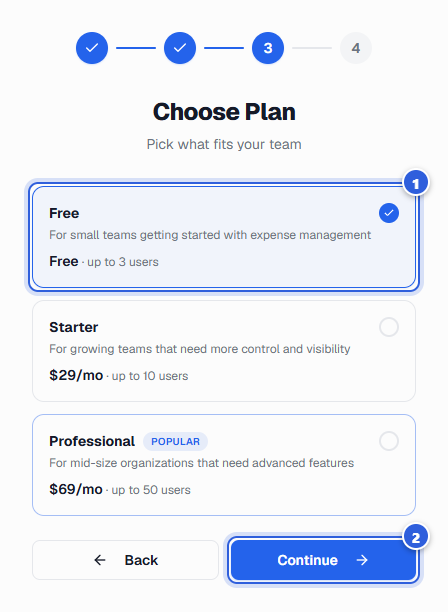
- Pick a plan. Free is enough to start and covers up to 3 people. Paid plans add more people and continue to a payment step.
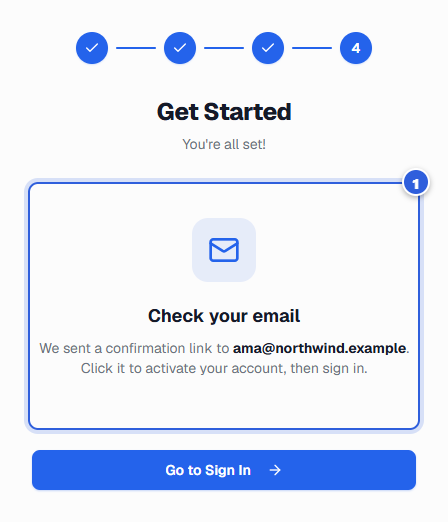
- Confirm your email. We send you a confirmation link. Click it, then sign in.
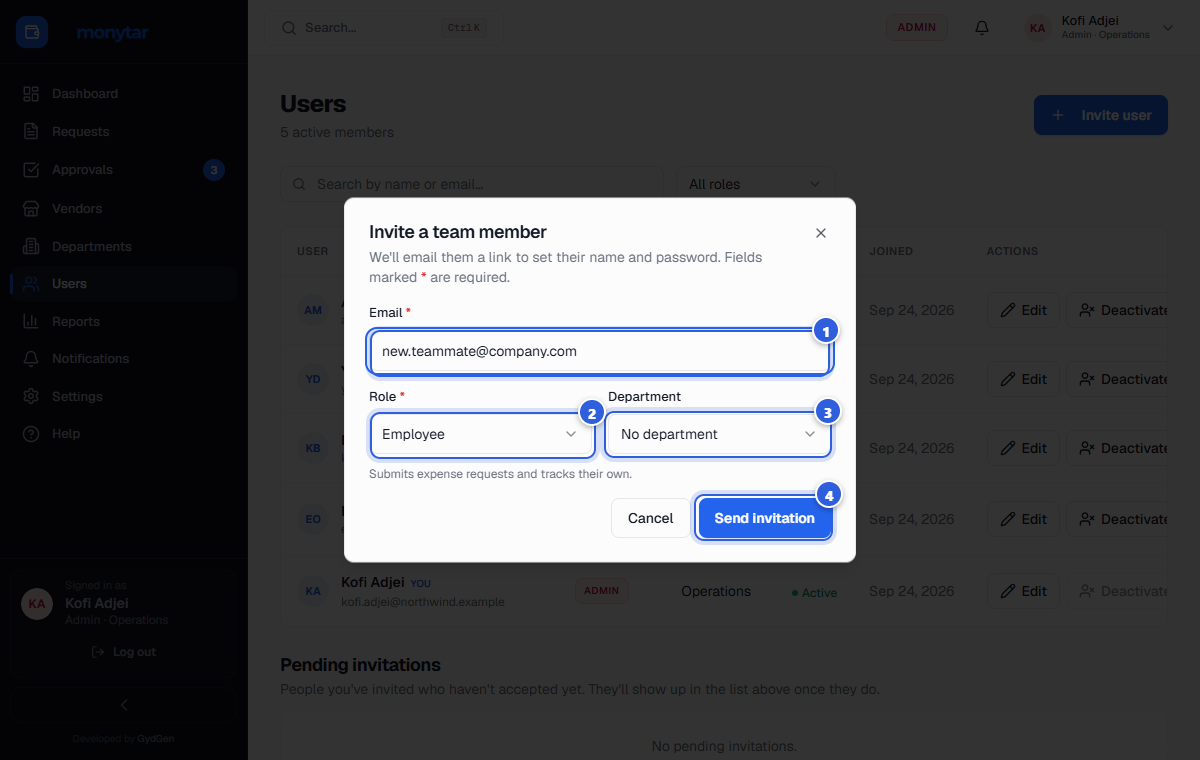
- Invite your team. Open Users, click Invite, then enter each person's work email, role and department.
For everyone joining a company
I was invited
Two minutes, from the email to your dashboard.
- Your admin invites you. They enter your work email and choose your role, then send the invitation. You get an email with a link.
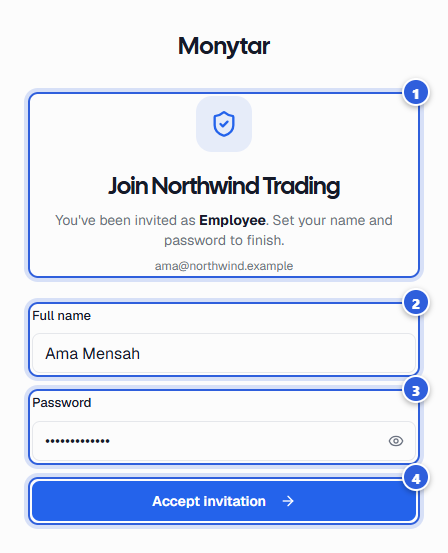
- Open the link. You'll see the company's name and the role you've been given.
- Add your name. Type your full name.
- Choose a password. Use at least 8 characters. You'll use it every time you sign in.
- Accept the invitation. Click Accept invitation. If you're asked to confirm your email first, click the link we send, then sign in.
Five habits that make approval fast
- Snap the receipt now. Photograph it while you're still holding it. It's the one thing people lose.
- Say why, not just what. “Fuel for the Kumasi client visit” gets approved faster than “Fuel”.
- Pick the closest category. Good categories make reports useful later.
- Submit soon after spending. Fresh expenses get approved quickly. Old ones raise questions.
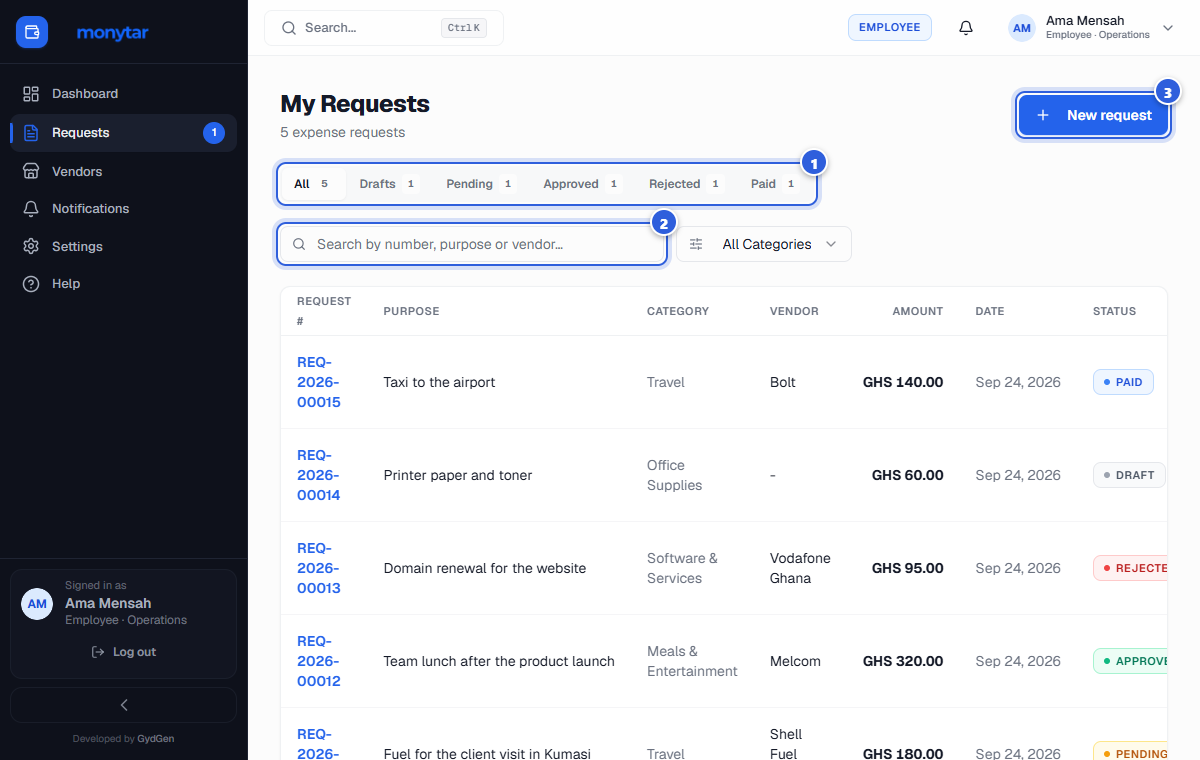
- Check the status, don't chase. Open Requests to see exactly where an expense is.
Quick answers
- How do I create a Monytar account?
- Choose Sign up, enter your name, work email and a password, name your organization, pick a plan and confirm your email. You become the Admin and can invite your team.
- I was invited. How do I join?
- Open the link in your invitation email, type your name, choose a password and click Accept invitation. You'll land on your dashboard.
- My confirmation or invitation link doesn't work.
- Links expire and work once. If your email is already confirmed, just sign in. If an invitation has expired, ask your admin to send a new one.
- I paid for something myself
- Add an expense and attach the receipt. Once approved, Finance records your payment.
- My expense was rejected
- Open it, read the comment, click Edit, then Resubmit.
- I forgot my receipt
- If it's still a Draft or Rejected, click Edit and add it. Once Pending, ask your reviewer.
- I can't submit
- Amount and reason are required. Over the receipt limit? Attach one, or Save as Draft.
- Where is Approvals (or Reports, Users)?
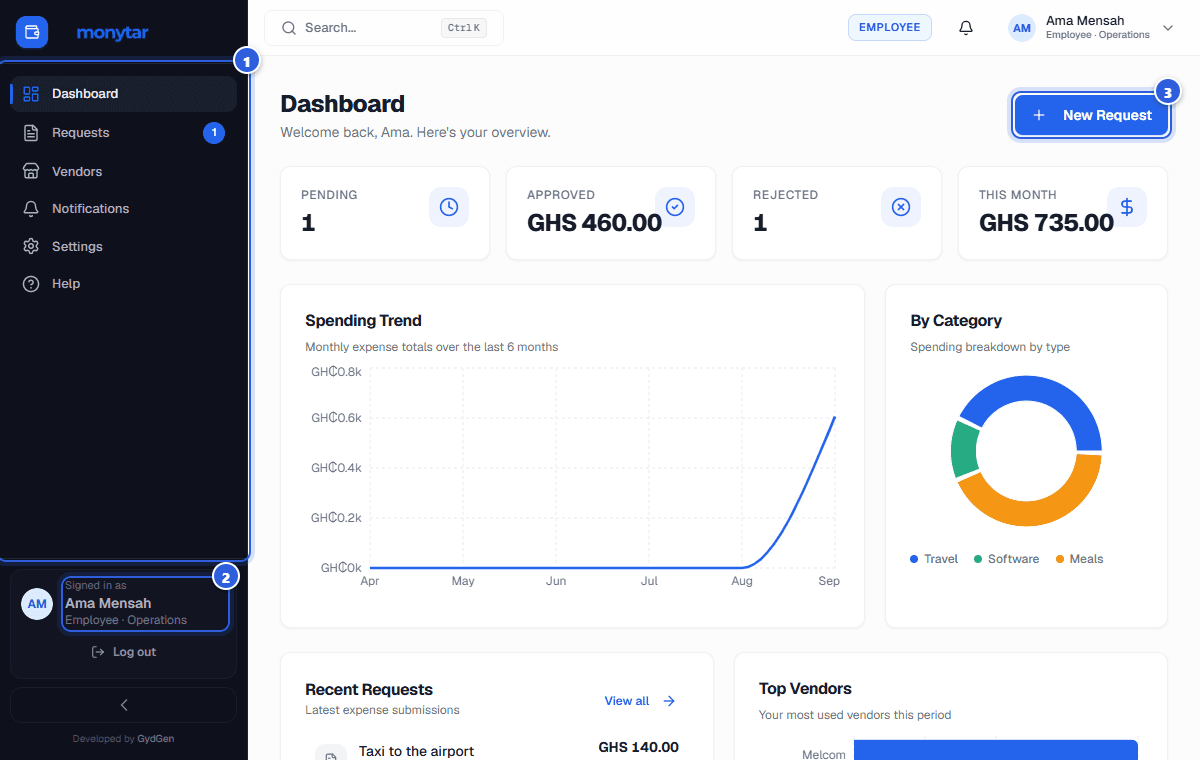
- Some pages depend on your role. Check your role at the bottom of the menu.
- I can't approve a request
- Managers only approve their own department's requests, and never their own.
- How do I find an old expense?
- Search on the Requests page, or press Ctrl+K anywhere.
- Amounts show the wrong currency
- Admin or Finance can change it in Settings → Organization → Currency.
- I forgot my password
- On the sign-in page, click Forgot? and we'll email you a reset link.
- Is a department over budget a problem?
- No. It's flagged in red, but nothing is blocked.
Words you'll see
- Request
- One expense you've recorded, from start to payment.
- Reimbursement
- Getting back money you spent for work.
- Draft
- Saved but not sent. Only you can see it.
- Approval chain
- Who must say yes: manager, then finance, or both.
- Auto-approve
- Small amounts your company lets through with no review.
- Vendor
- A company or person your business pays.
- Department
- A team with its own spending budget.
- Payment reference
- The ID of the payment, like a transfer number.
Ready to try it?
Your administrator adds you to Monytar. Once you're in, sign in and add your first expense — it takes a minute.